sudeeo · FEATURES guide · Version 1.0
How
sudeeo works
sudeeo is a production flow studio for filmmakers. You build the film once, as acts, sequences, scenes and shots, and every document the production runs on comes out of that one structure: the schedule, the shooting order, the shot list, the storyboard and the call sheet. Then you invite your company, and each person sees what their job needs.

The one idea
Write it once. Everything else follows.
Source
Canvas
Acts, sequences, scenes, shots. The film’s structure lives here and nowhere else.
Plan
Schedule
Scenes placed on shooting days. Move a strip and the call sheet moves with it.
Shoot
Shooting order · Shot list · Storyboard
The same shots, arranged for the floor, for the camera team and for staging.
Call sheet
One per day, built from the schedule, printed with your own logo.
People
Cast & crew
Invite by email. Everyone gets a private link to their own view.
Read
Crew view
What each person opens on the day: their call, their scenes, their part.
Watch
Production View
Today first, what will go wrong next, and how ready you are.
Share
Delivery
A presentation of the production, with private viewing links.
If a scene changes on the Canvas, you do not retype it anywhere. The schedule, the shot list and the call sheet already have it.
Contents
Fourteen sections
01Getting startedSigning up, the sample film, finding your way02Starting a productionScratch, template, film reference, script03The CanvasThe film as one tree04Production ViewToday, what needs fixing, readiness05On the floorSchedule, shooting order, shot list, storyboard, mood board06The call sheetOne sheet per day, printed07Your companyInviting, statuses, contacts08For cast & crewWhat an invited person sees09ScriptWriting and importing screenplays10ChatThe production’s one room11DeliveryThe presentation and private links12Settings & safetyUndo, deleted items, backups13Account & plansYour profile, free and full plan14Quick referenceShortcuts, statuses, terms
Section 01 · Getting started
Getting started
Make an account, or look around the sample film first. Every page of the sample is live; editing needs an account.
Create your account
- Go to studio.sudeeo.com and choose Sign up.
- Fill in your name, a username (3 to 30 characters: lower case letters, numbers and underscores), email, phone, industry and a password of at least 8 characters with a letter and a number.
- Choose Create account. Next time, log in with your username or email.
Just looking?
On the log-in page, choose Or look around a sample film first. It opens The Weighing, a short film with two shooting days, a call sheet, shots and storyboards already in place.
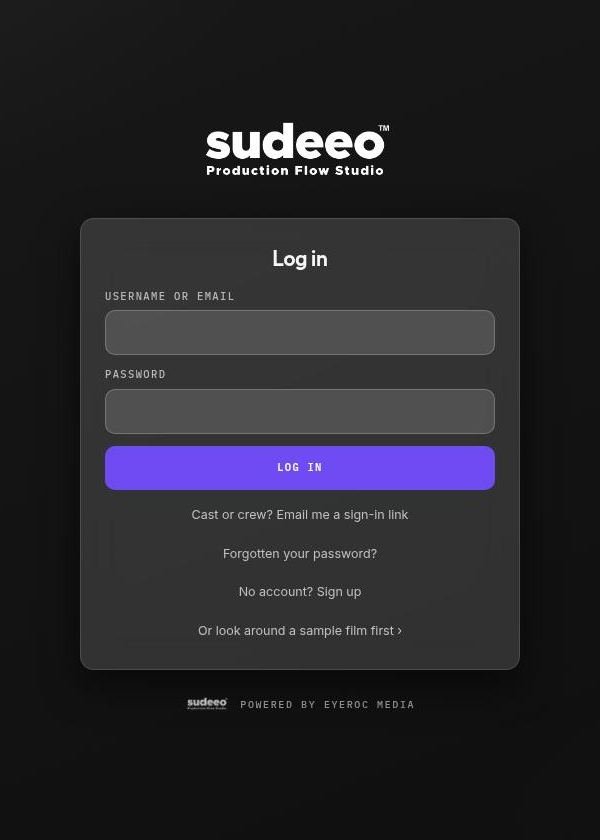
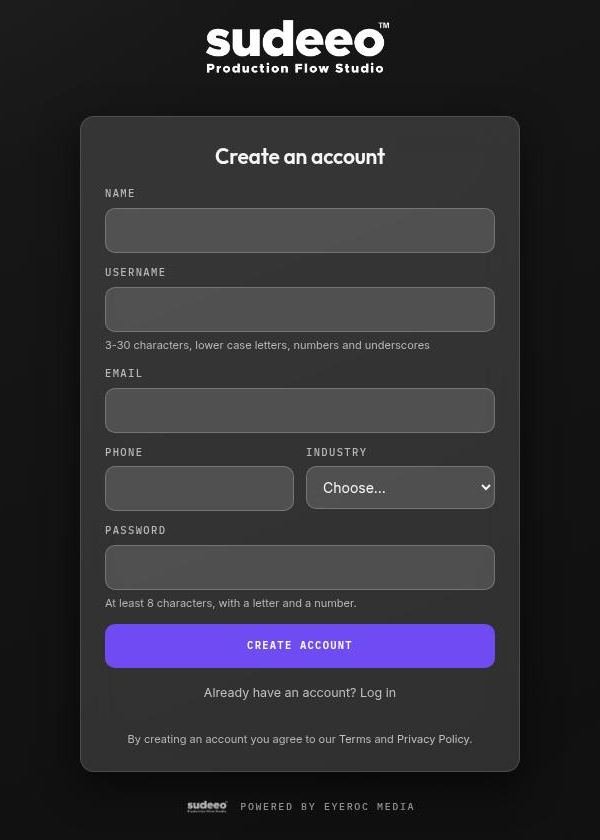
Log in · Create an account
Finding your way
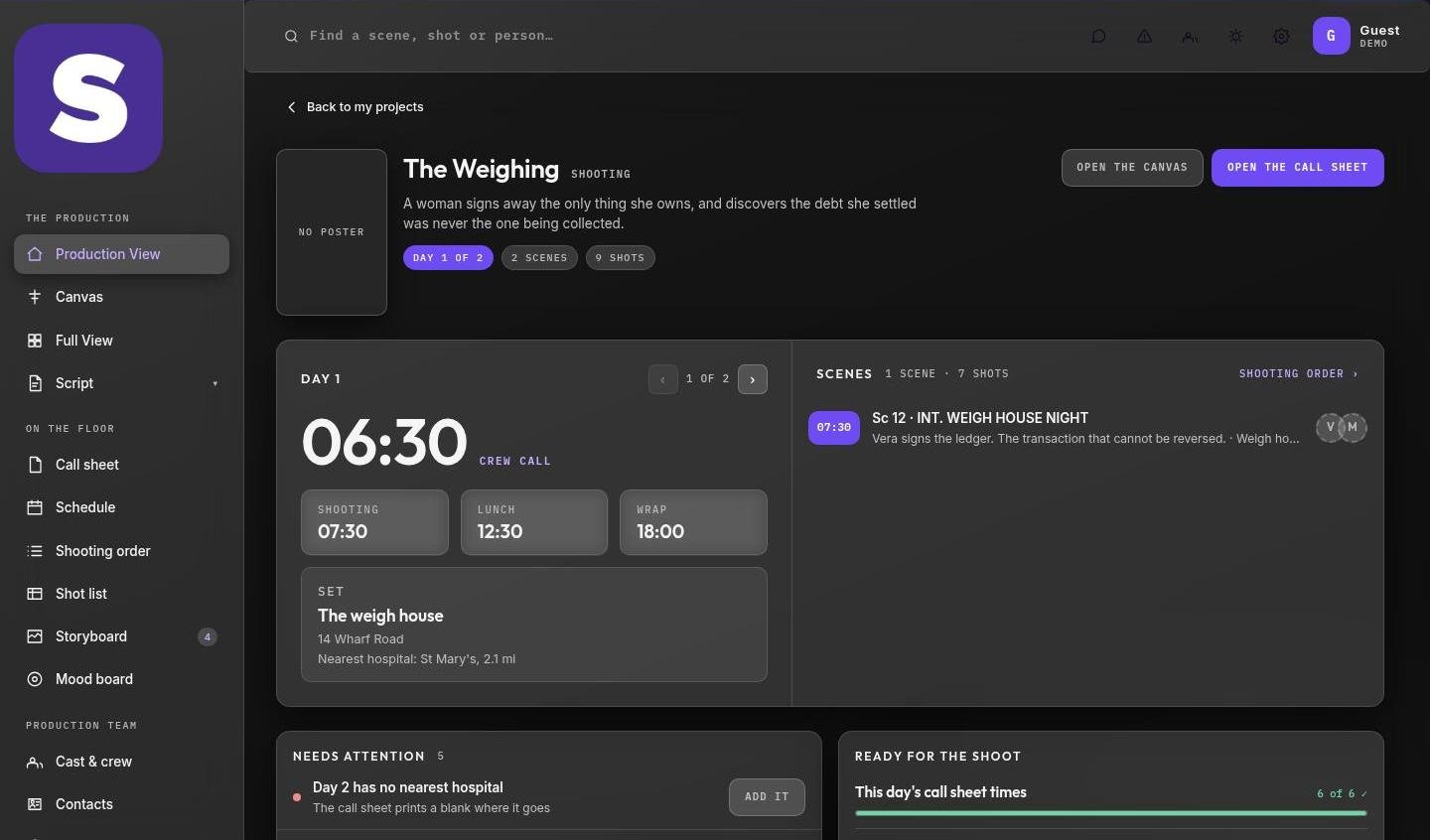
Every production has the same layout. The sidebar on the left holds the pages you use every day, in four groups. The top bar holds search and the things that need you from any page.
| The production | Production View, Canvas, Full View, Script |
| On the floor | Call sheet, Schedule, Shooting order, Shot list, Storyboard, Mood board |
| Production team | Cast & crew, Contacts, Chat |
| Elsewhere | My Projects, Your account |
| Top bar | Search (Ctrl K or ⌘ K), Chat, Needs attention, Cast & crew, light or dark theme, Settings, and your name to open your account |
The link at the top of each page names where it goes back to, such as Back to Production View, so you always know what you will land on. Light and dark themes both work everywhere; dark is the default.
Search anything
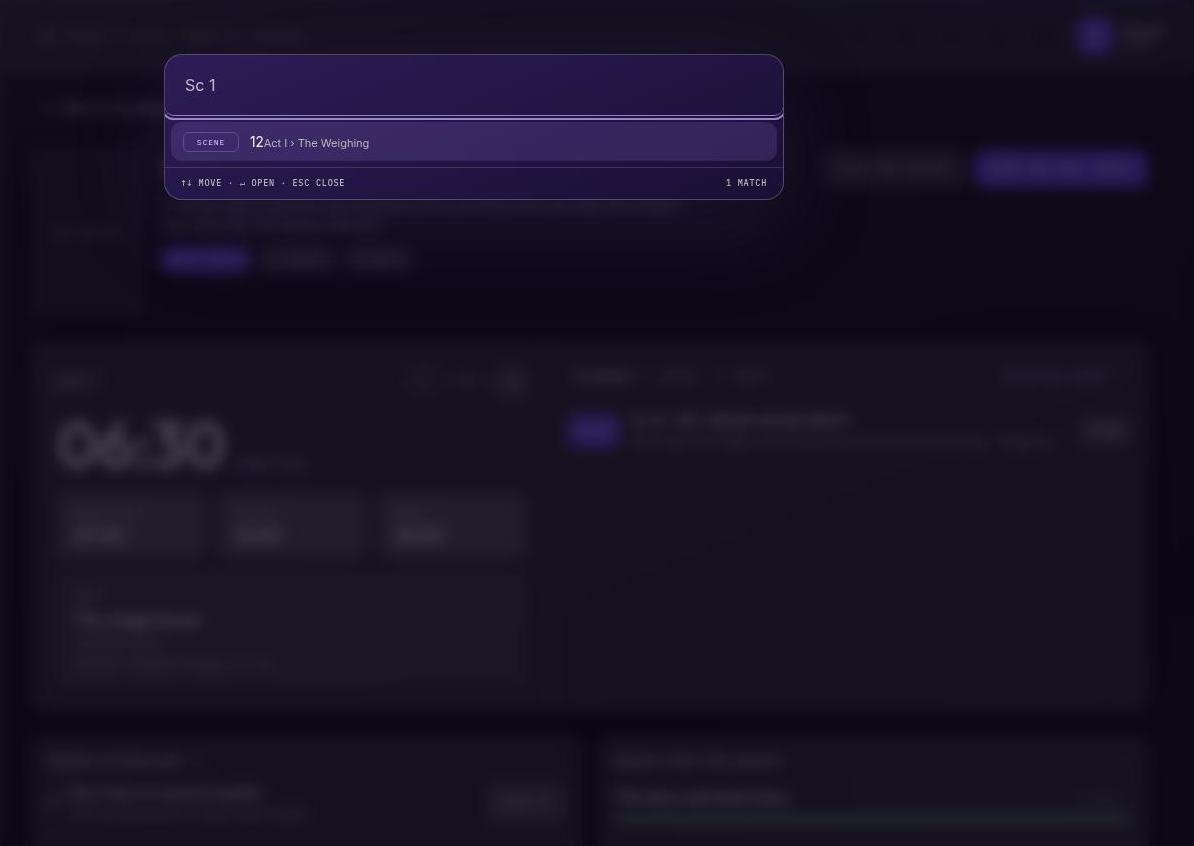
Press Ctrl K (⌘ K on a Mac), or click the search box in the top bar. Type a scene number, a slug line, a shot or a person. Use ↑ ↓ to move, Enter to open, Esc to close.
Section 02 · Starting a production
Starting a production
My Projects is your shelf of productions. Choose New production and pick one of four ways in. Each one ends in the same place: a production with a Canvas you can build on.
Way in
Use a template
A proven act and sequence structure to start from. Scenes and shots stay yours to fill in.
Free and full plan
Way in
Start from scratch
One empty act. Build the structure yourself, exactly as you see it.
Full plan
Way in
Import a film reference
Name a film and get its structure mapped onto the Canvas, as a scaffold to study and work from.
Full plan · 15 a day
Way in
Import a script
Upload a .fdx or .txt screenplay. Every scene heading in the file becomes a scene, grouped into acts and sequences.
10 a day
Templates
Four shapes
Feature Film (3 acts, 8 sequences) · Short Film (3 acts, 3 sequences) · Music Video (3 worlds, scene to shot) · Commercial (5 beats, 30 seconds).
On the shelf
Rename, duplicate, delete
Each production card has these under it. Deleting a whole production asks you to type its name first.
Your first production, step by step
- On My Projects, choose New production.
- Pick Use a template and choose the shape closest to your film.
- The production opens. Give it a title, a logline and poster art at the top of the Canvas.
- Rename the acts and sequences, then add your scenes and shots (section 03).
- Add shooting days on the Schedule, then fill in the Call sheet (sections 05 and 06).
- Invite your company from Cast & crew (section 07).
Free plan
A free account keeps one production, and it starts from a template. Starting from scratch, importing a film reference, inviting people and the chat room are on the full plan. See section 13.
Daily limits
Film reference imports are limited to 15 a day and script imports to 10 a day. The page shows how many you have left and when the count resets.
Invited to someone else’s film?
You don’t need to start anything. Your invitation link takes you straight to your view of their production. See section 08.
Section 03 · The Canvas
The Canvas
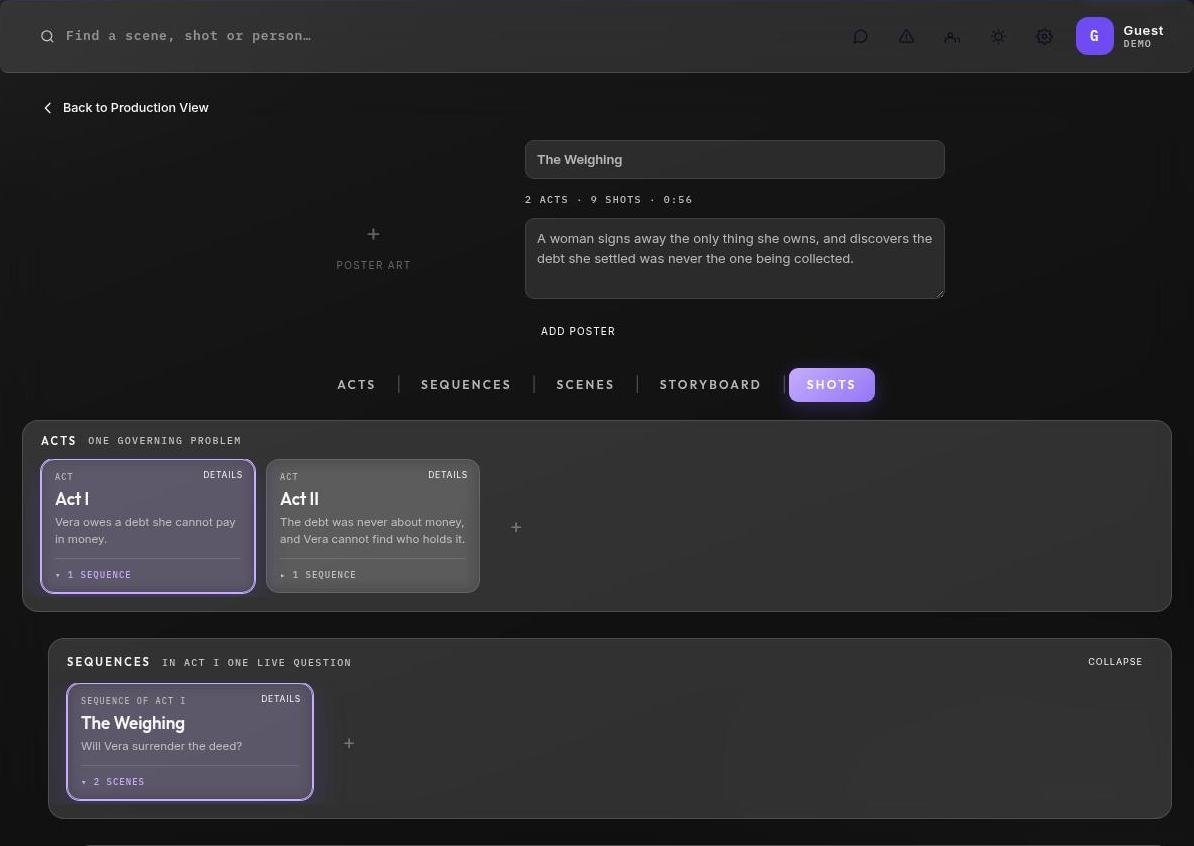
The Canvas is the film as one tree. Everything below a card belongs to that card, and nothing exists without a parent above it. Every other page in sudeeo reads from here.
Four levels
| Act | A phase of the story governed by one problem. It ends when that problem is replaced by a different one. |
| Sequence | A run of scenes bound by one live question that no single scene settles. |
| Scene | One continuous block of time and space. It has a number, a slug line (INT or EXT, place, DAY or NIGHT), a location, its cast and a description. |
| Shot | One continuous camera record: a code, size, lens, movement and duration. |
| Beat | The moment inside a scene where the dynamic shifts. |
Working on the Canvas
- Use the tabs Acts · Sequences · Scenes · Storyboard · Shots to choose how deep the Canvas opens.
- Click a card to open what is under it. The next band appears below it.
- Choose Details on any card to edit it: titles, problems, slug lines, cast, shot sizes.
- Choose + at the end of a band to add an act, sequence, scene or shot there.
- The counts at the top (acts, shots, running time) update as you build.
The shot ribbon
At the bottom of the Canvas, the ribbon steps through every shot in story order. Use ‹ ▶ › or the arrow keys. Present plays it full screen: Space plays and pauses, Esc leaves.
Full View
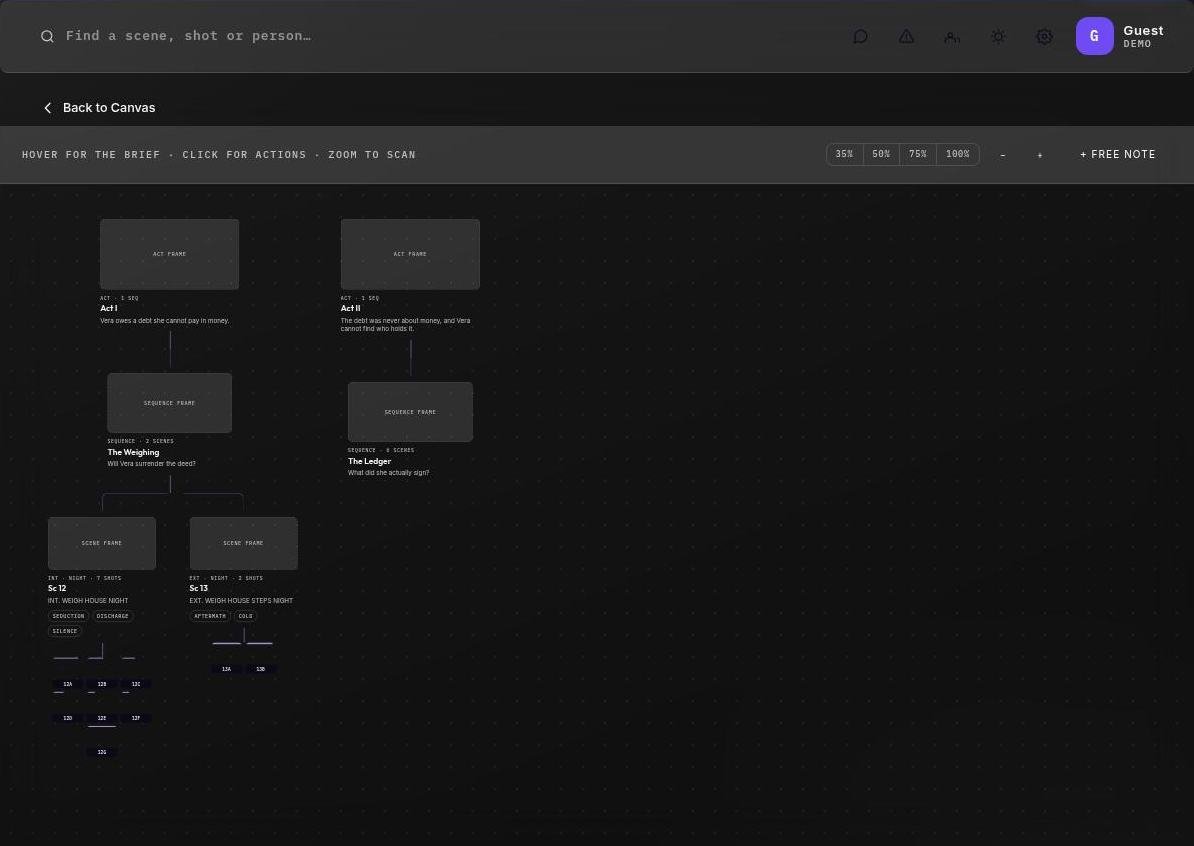
See the whole film
Full View lays every act, sequence, scene and shot out on one surface. Hover for the brief, click for actions, zoom (35% to 100%) to scan, and add a free note anywhere.
Music video
Worlds, scenes, shots
A music video has worlds instead of acts, and scenes tie to the track, so one location can cover several passages of the song.
Commercial
Beats and shots
A commercial has no sequence layer: a handful of beats (hook, problem, solution, proof, call to action) and the shots under them.
The Legend (how the Canvas works) and Story arcs (the seven basic plots) are on Settings, under Reference.
Section 04 · Production View
Production View
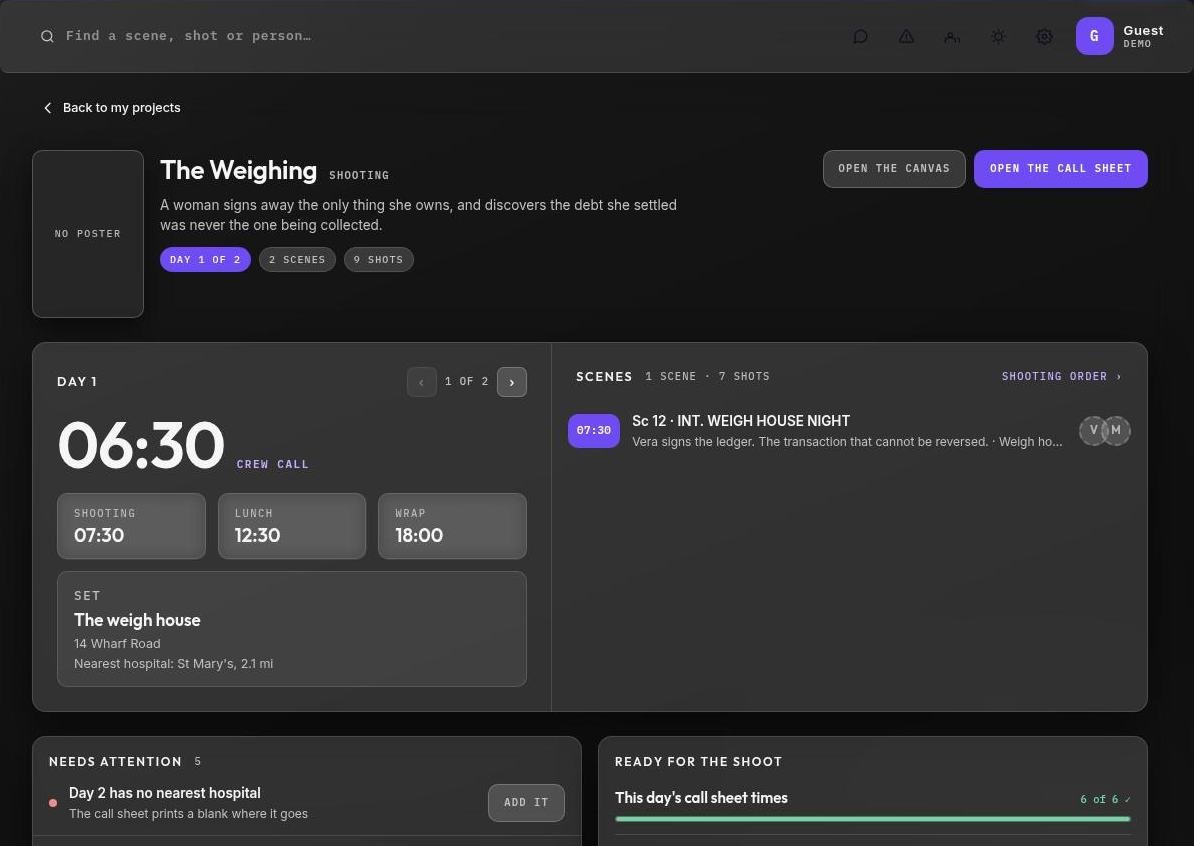
The page every production opens on. It answers three questions in order: what is today, what will go wrong if nobody fixes it now, and how ready are we.
Today first
The top panel is the shooting day. The crew call is the largest thing on the page, with shooting, lunch and wrap beside it, and the set with its address and nearest hospital. On the right are the day’s scenes in board order, with the faces of the cast in each.
Step between days with ‹ ›. The header takes you to the Canvas or straight to the day’s call sheet.
Needs attention
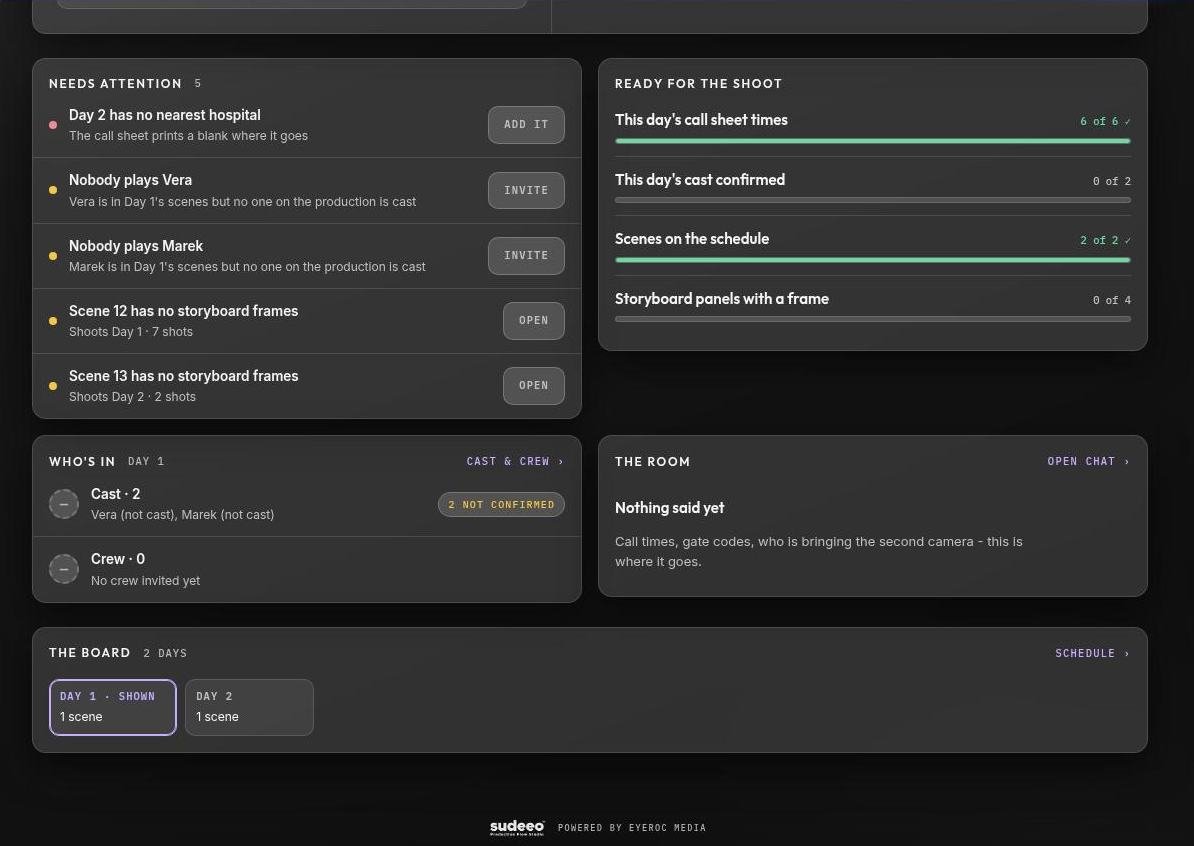
A list of what will go wrong on the day, most urgent first. Each item has the one button that fixes it, and takes you to the right page.
| ● Urgent | No crew call on the day · a day with no nearest hospital · cast in the day’s scenes who haven’t accepted or haven’t been invited |
| ● Soon | A part nobody plays · a day with no location · a scene with storyboard panels but no frames · scenes with no location |
Ready for the shoot
Bars that count toward a total: the day’s call sheet times, the day’s cast confirmed, scenes on the schedule, and storyboard panels with a frame. A bar only appears when there is something to count.
Below them: Who’s in (the day’s cast and crew and whether they have accepted), The room (the latest chat) and The board (every day at a glance).
Section 05 · On the floor
On the floor
Five pages that take the Canvas to set. None of them hold a separate copy of your scenes or shots: they are the same scenes and shots, arranged for the job in hand.
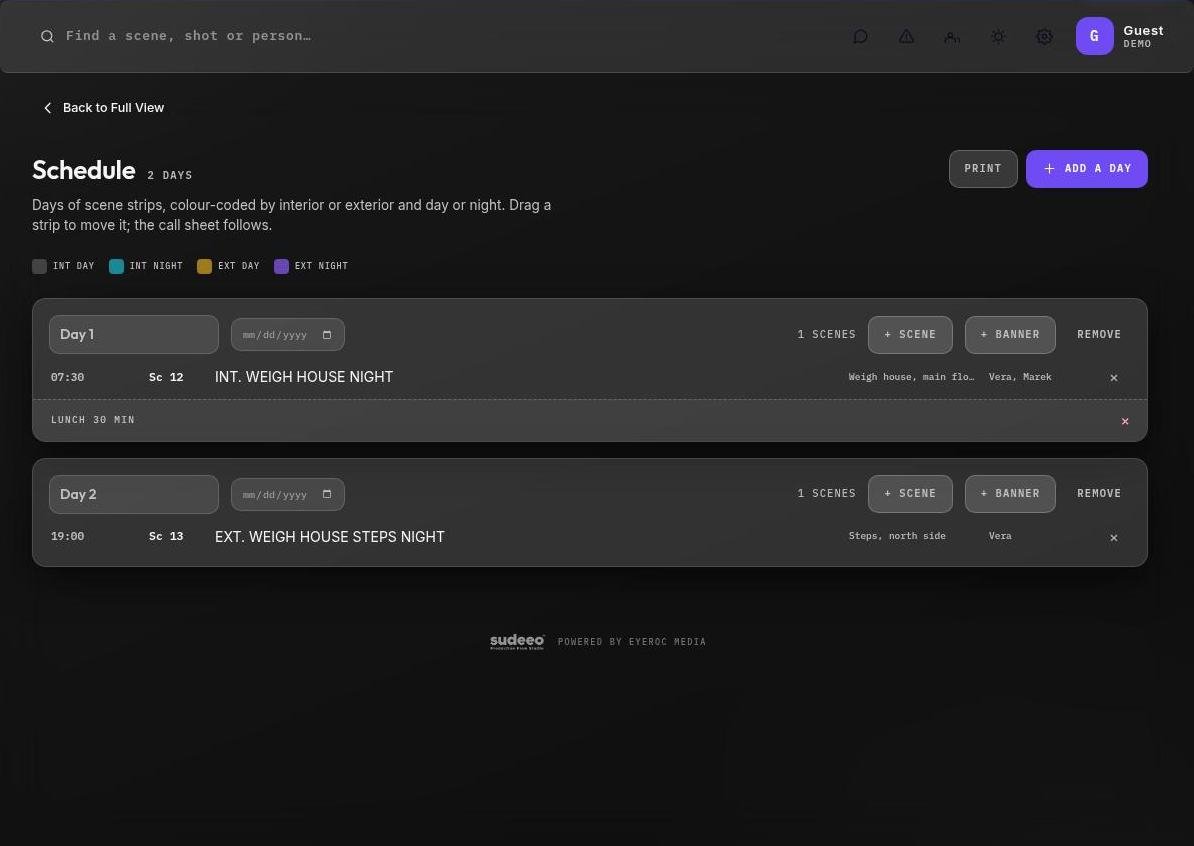
Schedule
Days of scene strips, colour-coded by interior or exterior and day or night.
Int day
Int night
Ext day
Ext night
- Choose Add a day, then name it and set its date.
- Choose + Scene to put a scene on the day, and + Banner for a lunch or a company move.
- Drag a strip to move it, within a day or to another. The call sheet follows.
- Print the schedule when it’s settled.
Shooting order
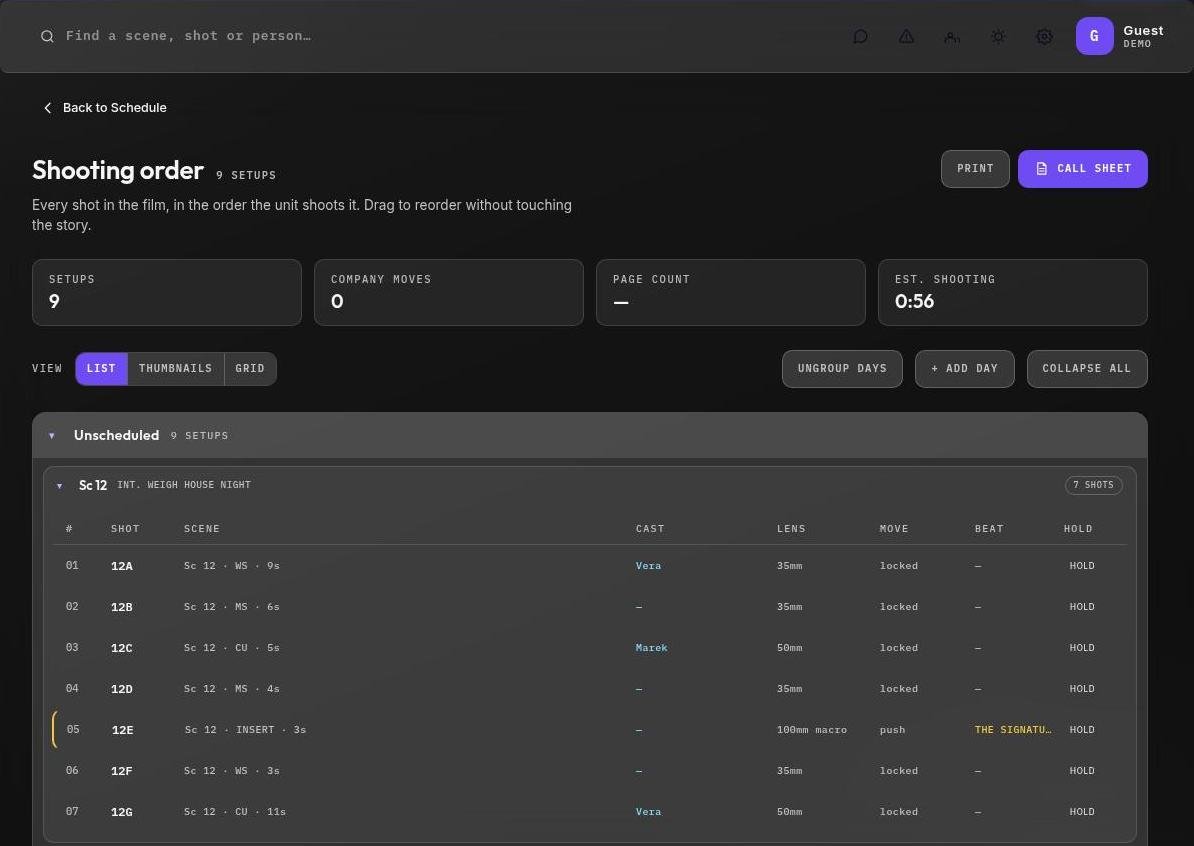
Every shot in the film, in the order the unit shoots it. Drag to reorder without touching the story: the Canvas keeps story order, this page keeps shooting order.
The totals at the top show setups, company moves, page count and estimated shooting time. View it as a list, thumbnails or a grid. Shots not yet on a day sit under Unscheduled.
Shot list
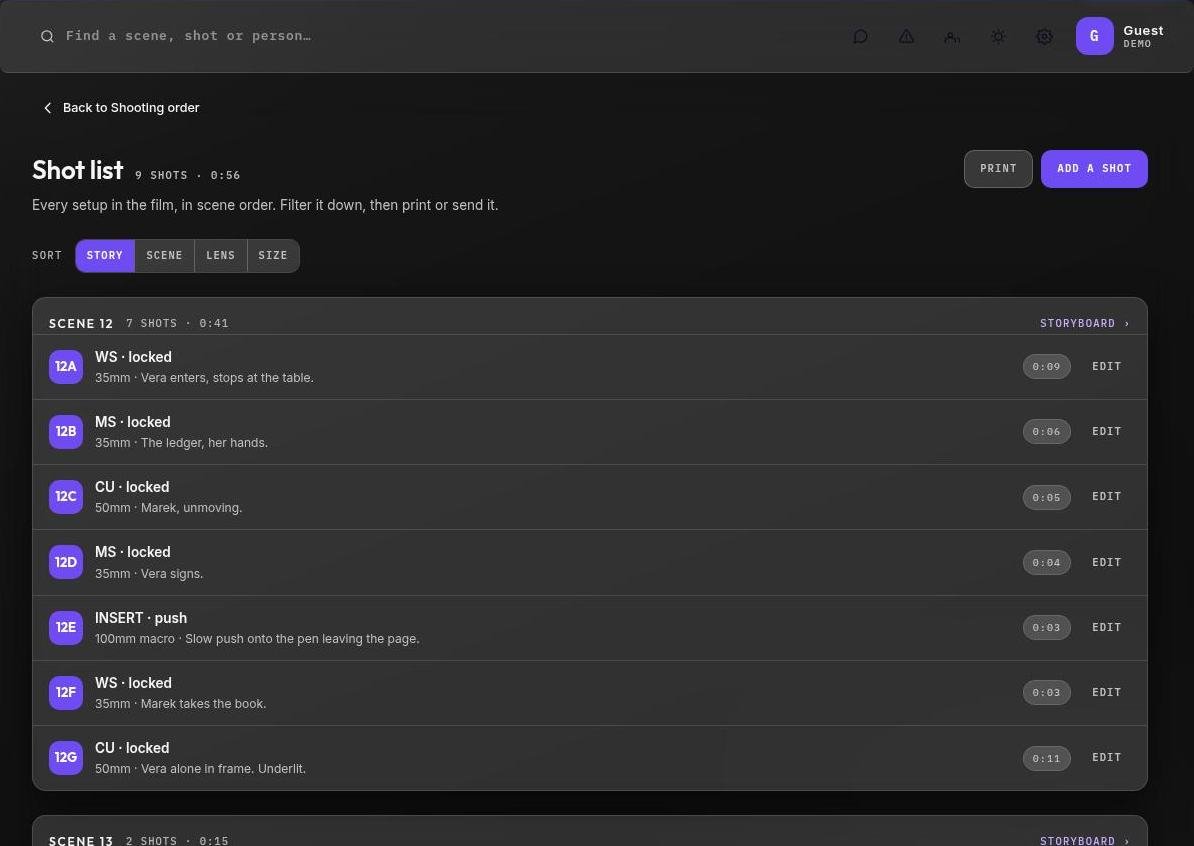
Every setup in the film, in scene order: code, size, lens, movement and notes. Filter it down to what a department needs, then print or send it.
Storyboard
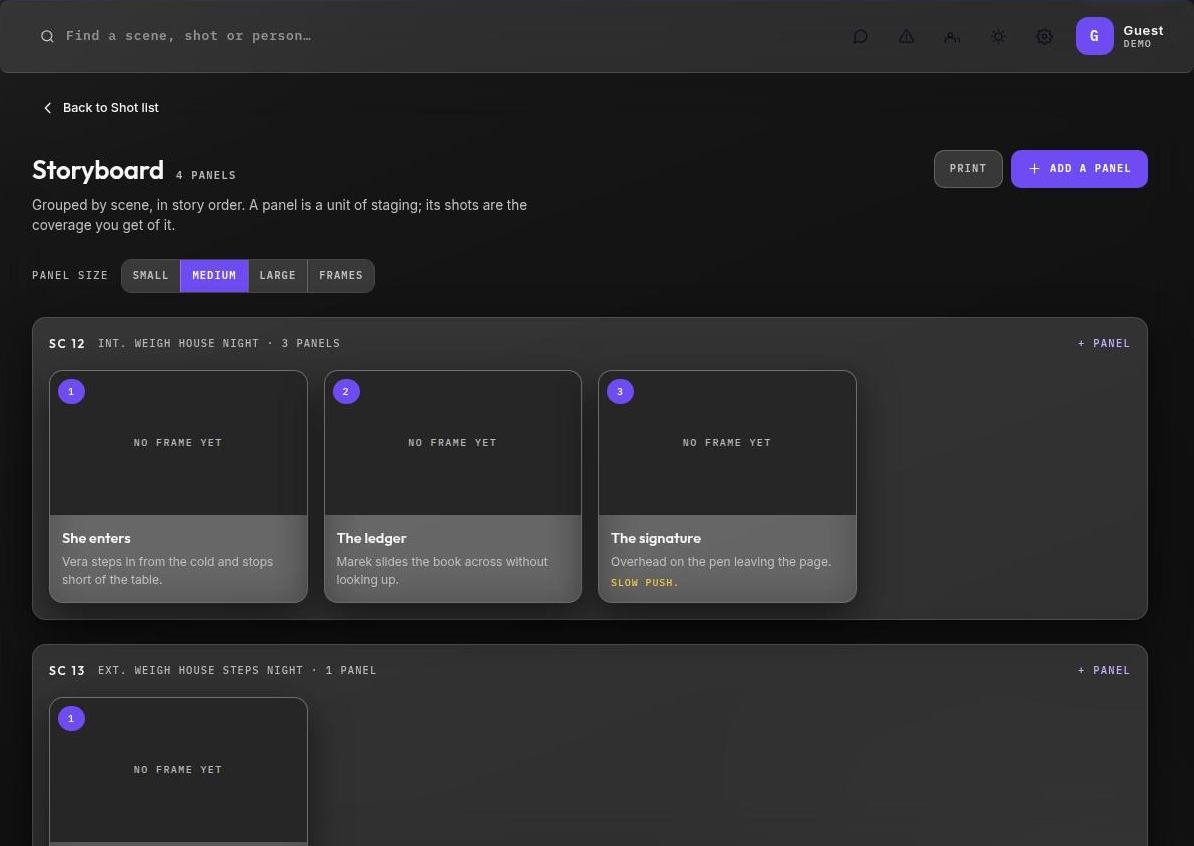
Grouped by scene, in story order. A panel is a unit of staging, and its shots are the coverage you get of it.
- Choose Add a panel under a scene.
- Add a frame to the panel: a drawing, a photo, a reference still.
- Change the panel size to see more or fewer at once.
Heads up
A scene with panels but no frames shows up in Needs attention when it’s due to shoot soon.
Mood board
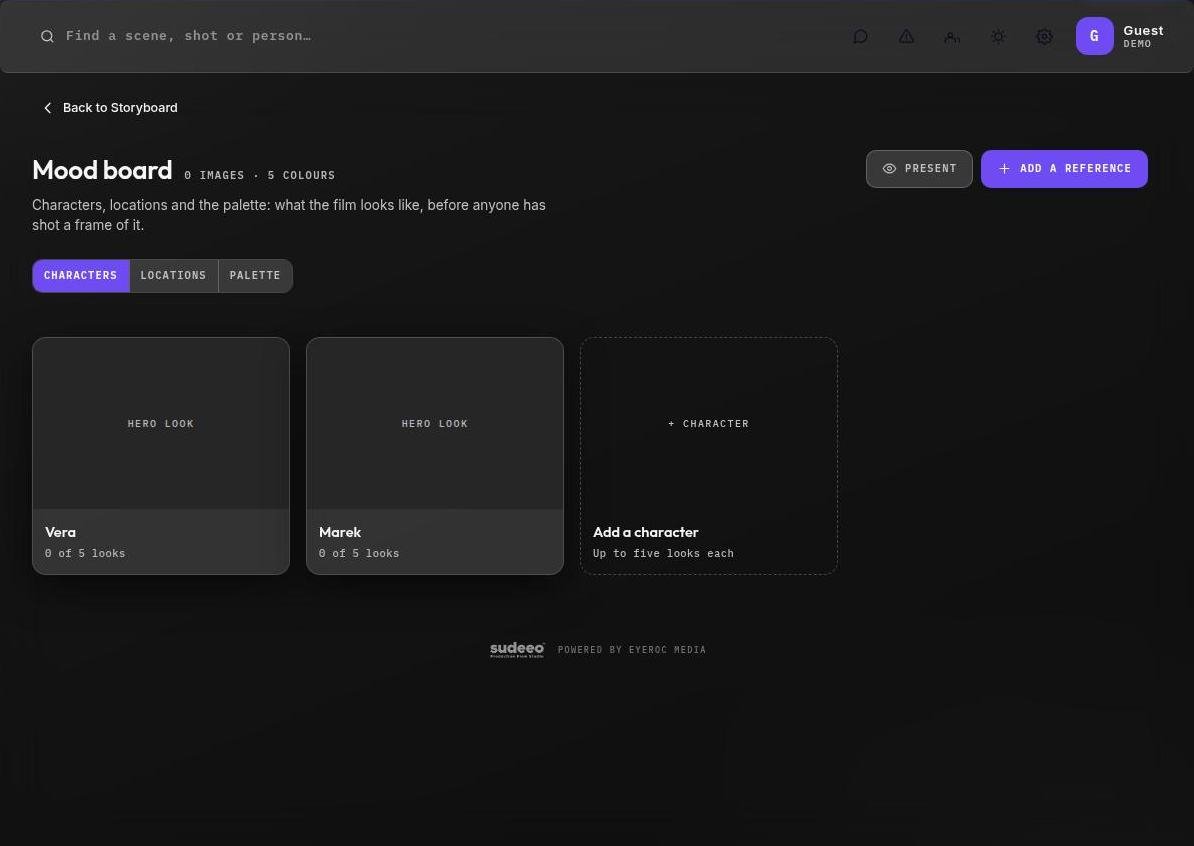
Characters, locations and the palette: what the film looks like before anyone has shot a frame of it. Switch between the Characters, Locations and Palette tabs, choose Add a reference to add images and notes, and Present to show it full screen.
Section 06 · The call sheet
The call sheet
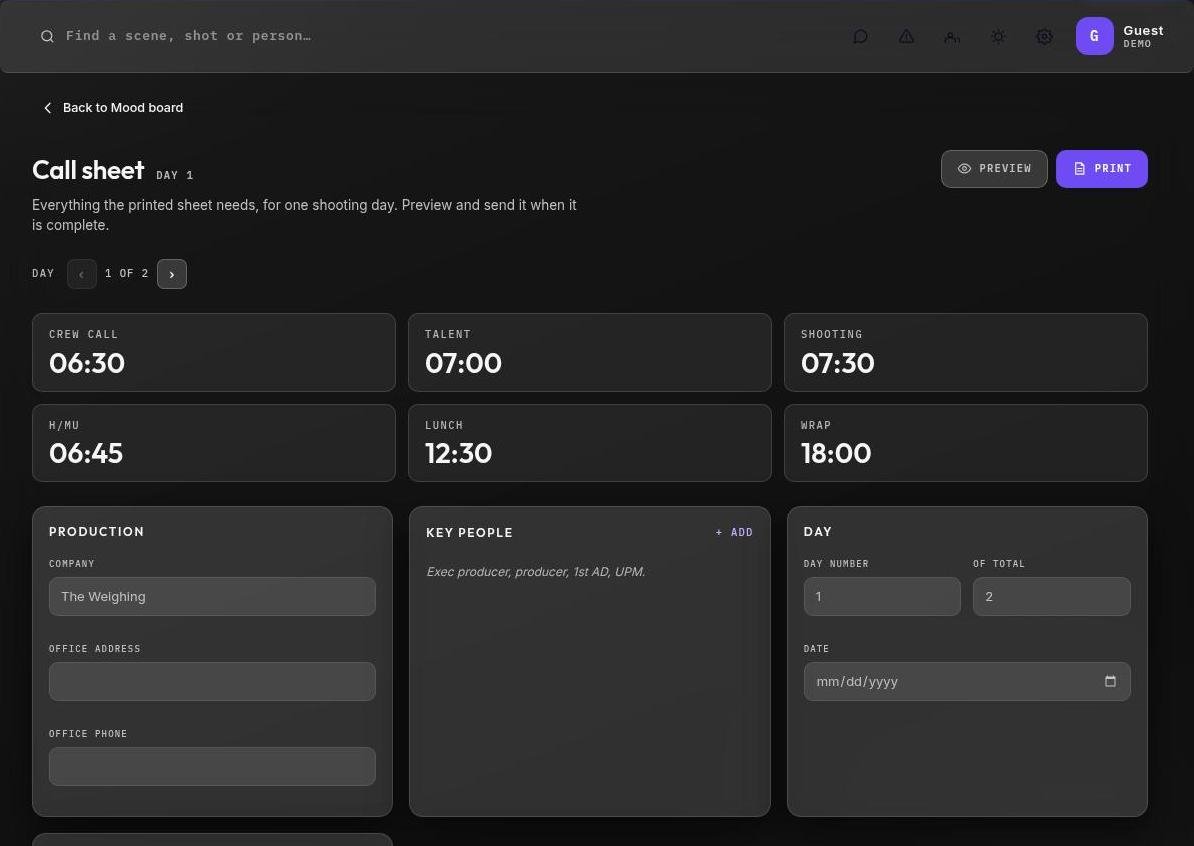
Everything the printed sheet needs, for one shooting day. The scenes come from the schedule; you add the times, the people and the place.
Fill in a day
- Pick the day with ‹ › next to Day. There is one call sheet per shooting day.
- Set the six times: crew call, talent, shooting, H/MU, lunch and wrap.
- Fill in Production (company, office address, office phone) and add Key people: exec producer, producer, 1st AD, UPM.
- Add the location with its address and the nearest hospital.
- Choose Preview to see the printed page, then Export PDF.
Your logo on it
Set a Brand logo in Settings and it prints on your call sheets and shot lists.
What prints
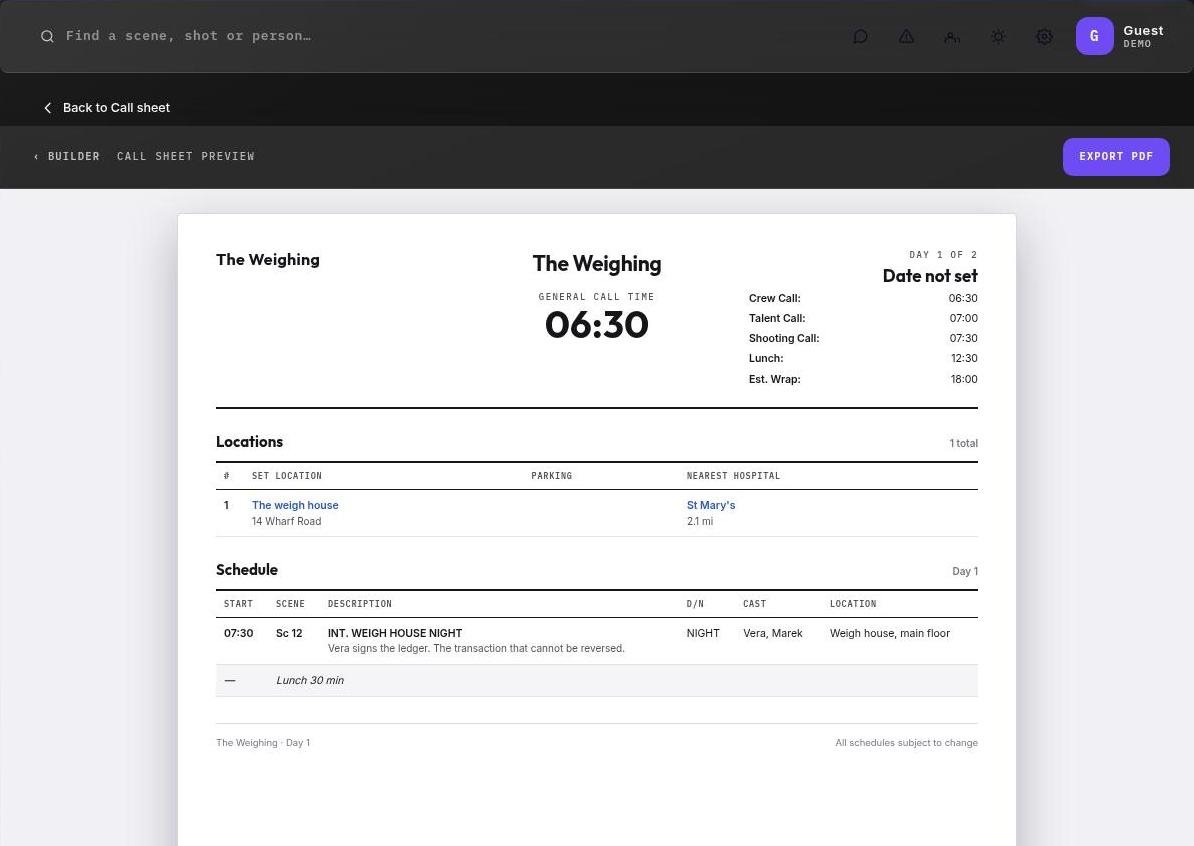
The preview is the page exactly as it prints: the title, the day and date, the crew call large, every time, the location and hospital, and the day’s scenes from the schedule.
A blank time prints as a dash, which is why a missing crew call or hospital appears in Needs attention before anyone prints it.
Section 07 · Your company
Your company
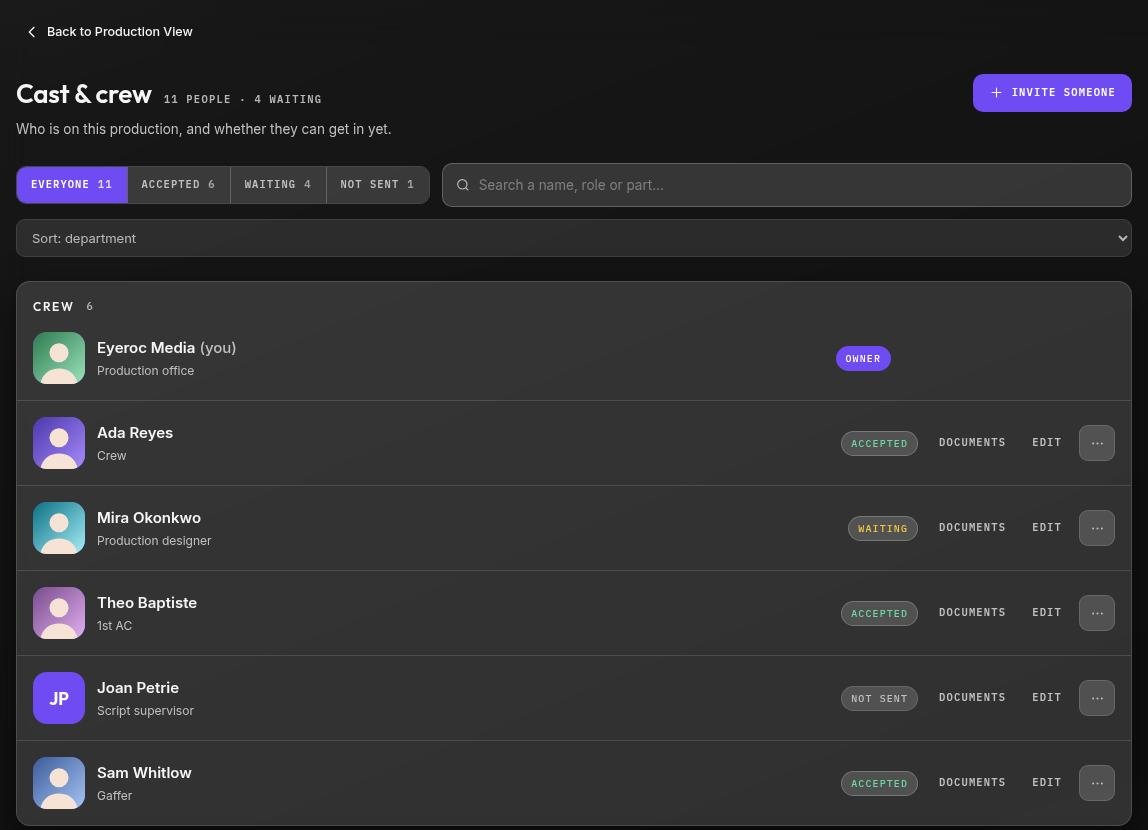
Cast & crew is who is on this production, and whether they can get in yet. Invitations go out by email, and each person gets a private link to their own view.
Invite someone
- On Cast & crew, choose Invite someone.
- Choose Cast or Crew. Add their name, email and phone.
- For crew, pick their job, which decides what they see. For cast, add the part they play and their agent.
- Save it, or save and send the invitation. They get an email with their link.
Search by name, role or part, sort by department, A to Z or status, and filter with the tabs along the top.
Where everyone is
Owner
Accepted
Waiting
Not sent
Paused
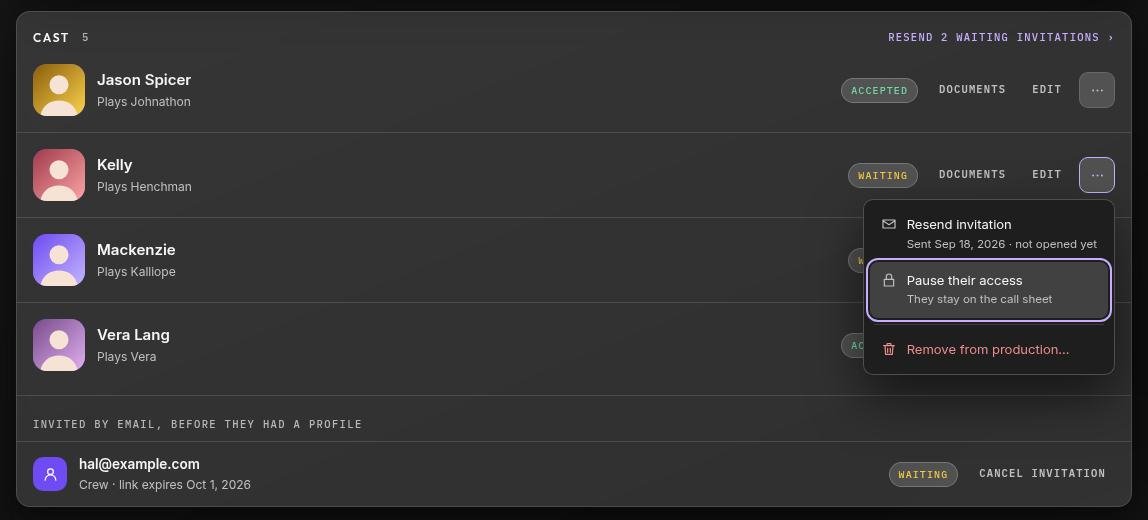
| Accepted | They have opened their link and are in. |
| Waiting | Invited, not in yet. Someone invited by email before they had a profile also counts as waiting, listed under Cast. |
| Not sent | Saved, but no invitation has gone out. |
| Paused | Their access is off. They stay on the call sheet. |
Each person’s ⋯ menu has Send or Resend invitation, Pause their access or Resume, and Remove from production. Resend N waiting invitations at the top of a list sends them all. Documents holds files for that one person, such as a contract.
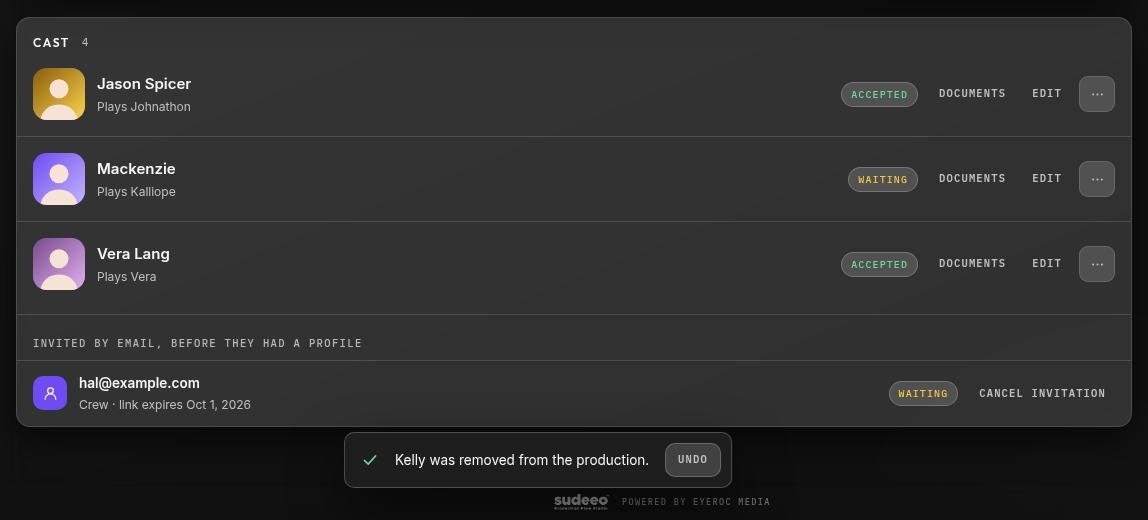
Removing someone
Removing asks first, and says what happens: they come off this production’s cast and crew, their link to the crew view stops working, and what they said in the production’s chat stays.
After you confirm, you have about 8 seconds to Undo before anything is actually removed.
Pause or remove?
Pause if they might come back: resuming gives them a new link to send. Remove when they’re off the production.
See it as they will
The See it as they will button on Cast & crew opens the crew view as your company sees it.
Also in Production team
Contacts
Phone book
Everyone, and how to reach them
Everyone on this production, A to Z, with a call and email button on each. Search by name, job, part or number.
Filter
By department
Tabs along the top come from the departments people are actually in, each with a count.
Across productions
People you work with often
If someone is on more than one of your productions, their card says how many.
Section 08 · For cast & crew
For cast & crew
This section is for the people you invite. They don’t build anything: they open their link and see their production, cut down to what their job needs.
Getting in
- Open the invitation email and choose the link.
- Create an account. The email is filled in from the invitation and can’t be changed: it is how the production knows it’s you.
- You land on Today, your production’s day on one screen.
- Fill in Your profile: how you appear to the rest of the production. Your number is held by the production office.
Link not working?
If a link has been paused or has expired, ask the production office to resend it. The page won’t say more than that, on purpose.
What each person sees
| Everyone | Today, Call sheet, Chat, People, Schedule, Your profile |
| Cast | Plus their Sides, Wardrobe and Character: written by the production, visible only to the assigned actor |
| Crew | Plus what their job needs. A location manager also sees the shooting order and mood board; an editor sees the storyboard and shooting order; a colorist sees the storyboard and mood board. |
| Production office | Every panel, plus Cast & wardrobe, where the cast-facing pages are written |
Documents the production office attaches to you appear under Documents.
Section 09 · Script
Script
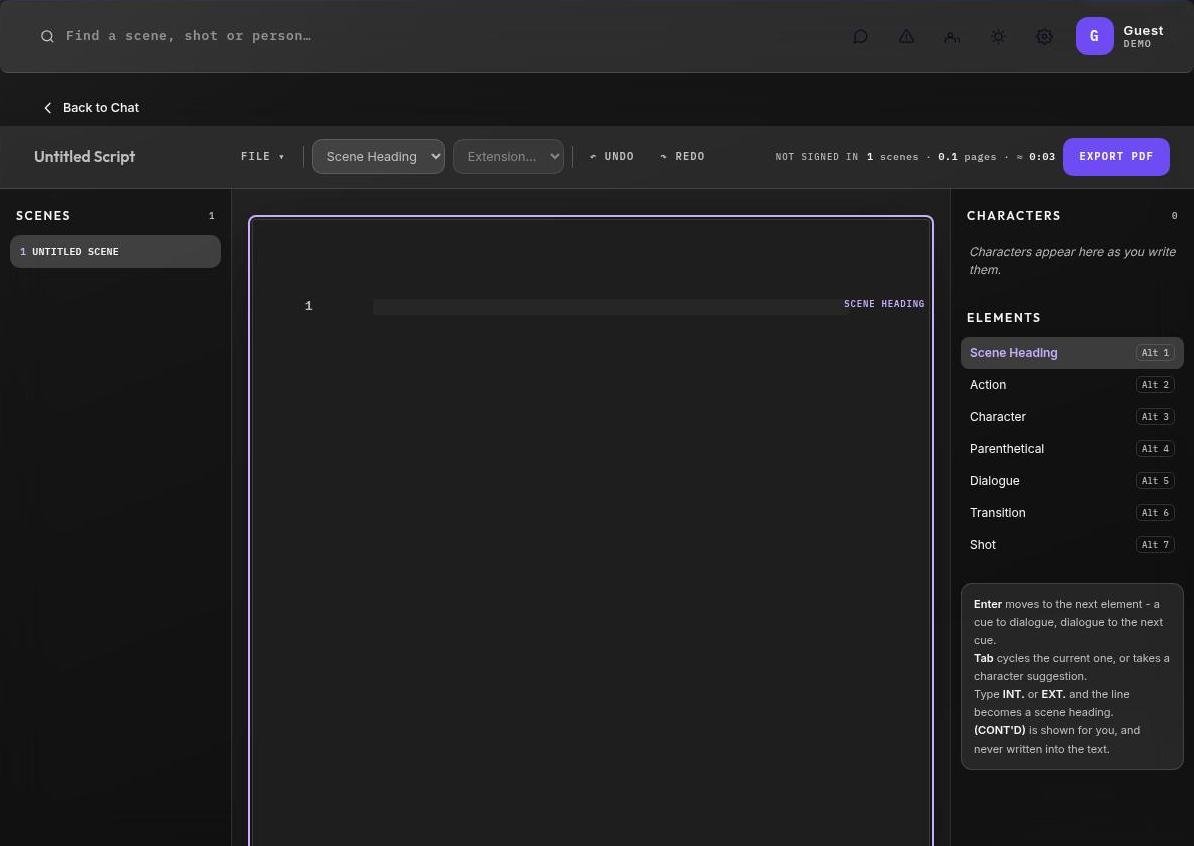
A screenplay editor inside the production. Writing here does not create or change anything on the Canvas: the script is the script, and the production is built on the Canvas.
Open the script menu
Choose Script in the sidebar for three options: New script, Open… and Upload .fdx, .fountain or .txt.
Writing
| Enter | Moves to the next element: a character cue goes to dialogue, dialogue to the next cue |
| Tab | Cycles the current element, or takes a character suggestion |
| INT. / EXT. | Typing either turns the line into a scene heading |
| Alt 1–7 | Scene heading, action, character, parenthetical, dialogue, transition, shot |
| (CONT’D) | Shown for you, and never written into the text |
Scenes are listed on the left and characters on the right as you write. The bar shows scenes, pages and running time. Export PDF when you’re ready to send it.
Want the script to become the production?
Use Import a script on My Projects instead (section 02). That reads every scene heading and builds the Canvas from it.
Section 10 · Chat
Chat
Each production has one room. Call times, gate codes, who is bringing the second camera: this is where it goes.
Who’s in it
Your whole company
Everyone with access to the production, from the office to the cast, in one room.
Where
From anywhere
Chat in the sidebar, the chat icon in the top bar with its unread count, and The room on the Production View.
Plan
Full plan
The room is part of the full plan. Messages stay when someone is removed from the production.
Section 11 · Delivery
Delivery
The production as a presentation: build it here, show it full screen, and send private links to the people who should see it. Open it from Settings, under Sharing.
Build and share
- Open Settings and choose Delivery. The presentation starts from your production’s details.
- Add, reorder and remove slides. A removed slide can be undone for a few seconds.
- Choose Present to show it full screen.
- Type a viewer’s email and choose Invite to view. They get a private link with no account needed.
Managing viewers
| Copy link | Copy a viewer’s private link to send yourself |
| Resend | Send the invitation email again |
| Revoke | Switch that viewer’s link off. Undo is there for a few seconds. |
Private means private
Each viewer has their own link. Revoking one leaves everyone else’s working.
Section 12 · Settings & safety
Settings & safety
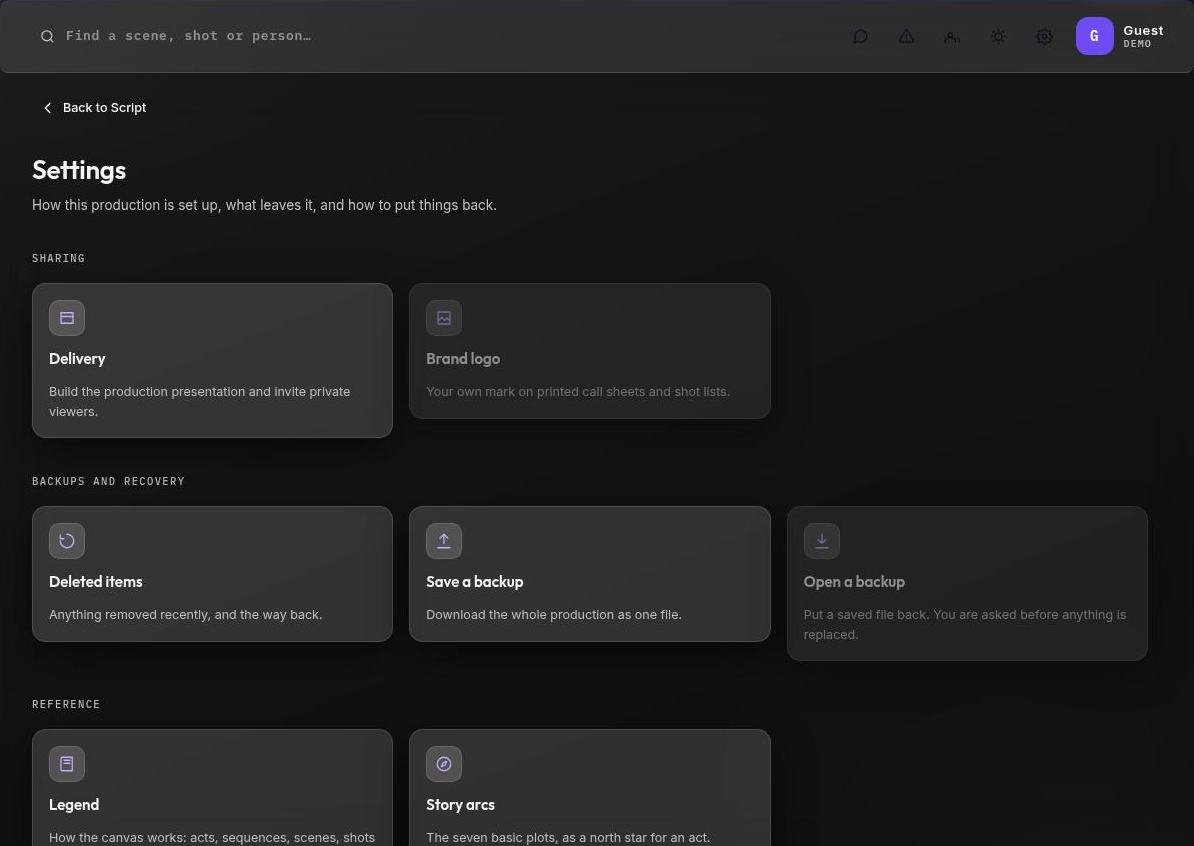
The gear in the top bar opens Settings. Inside a production it holds everything used now and then; on My Projects it holds what applies to all your productions.
A production’s Settings
| Sharing | Delivery · Brand logo |
| Backups | Deleted items · Save a backup · Open a backup |
| Reference | Legend · Story arcs |
On My Projects, the gear opens your studio’s Settings: Brand logo and Story arcs.
Three layers of safety
Nothing disappears by accident
Seconds
Undo
Removing a day, a scene from the schedule, a key person, a location, a mood board image, a slide or a script shows a notice with Undo. Nothing is removed for about 8 seconds.
30 days
Deleted items
Anything removed from the Canvas in the last 30 days can be put back, with its shots, cues and frames. Restore puts it back; restore a deleted parent before its children. Forget deletes it for good, and asks first.
Any time
Backups
Save a backup downloads the whole production as one file. Open a backup puts a saved file back, and asks before anything is replaced.
Leaving mid-undo
If you close the tab while an Undo notice is still showing, that removal does not go through and the item is still there next time. Let the notice finish before you leave.
Section 13 · Account & plans
Account & plans
Your account is you, not a film. Open it from Your account in the sidebar or your name in the top bar.
Your account
Your name, username, phone and industry, the productions you are on, and your plan. Open any production from here.
| What you can do | Free | Full plan |
|---|---|---|
| Productions | One | As many as you need |
| Start from a template | Yes | Yes |
| Start from scratch | No | Yes |
| Import a film reference | No | Yes, 15 a day |
| Import a script | 10 a day | 10 a day |
| Invite cast & crew | No | Yes |
| The chat room | No | Yes |
| Be invited to someone else’s production | Yes | Yes |
To upgrade, choose Upgrade on Your account. A locked option shows a lock and says why before you try it.
Section 14 · Quick reference
Quick reference
Keyboard
| Keys | Where | Does |
|---|---|---|
| Ctrl K · ⌘ K | Anywhere in a production | Opens search |
| ↑ ↓ Enter | Search, menus | Move through results or items, and open one |
| Esc | Search, menus, dialogs, Present | Closes without changing anything |
| ← → | Canvas ribbon, Present | Previous and next shot |
| Space | Present | Play and pause |
| Alt 1–7 | Script | Set the element: heading, action, character, parenthetical, dialogue, transition, shot |
| Enter · Tab | Script | Next element · cycle element or take a suggestion |
Statuses and colours
Owner
Accepted
Waiting
Not sent
Paused
| ● Red dot | Needs attention now: it will go wrong on the day |
| ● Amber dot | Needs attention soon |
| Green bar | That measure is complete |
| Violet button | The page’s main action. There is one per page. |
Terms
| Slug line | A scene’s heading: INT or EXT, the place, DAY or NIGHT |
| Banner | A non-scene row on the schedule, such as lunch or a company move |
| Company move | The whole unit moving to a new location during the day |
| Setup | One camera position and its shot |
| H/MU | Hair and make-up call |
| Sides | The pages of the script an actor needs for the day |
| Panel | On the storyboard, a unit of staging; its shots are its coverage |