
open beta mode now available
Story, scripts, schedules, shot lists
and dailies, always in sync.
Synchronized workflow
Full Production Collaboration
Built for the whole production office and everyone they call to set
- Directors
- Producers
- 1st ADs
- Script supervisors
- Cinematographers
- Production designers
- Cast
What’s inside
Five tools, one production
Each one reads from the same film. Change a scene once and every page that shows it already knows.
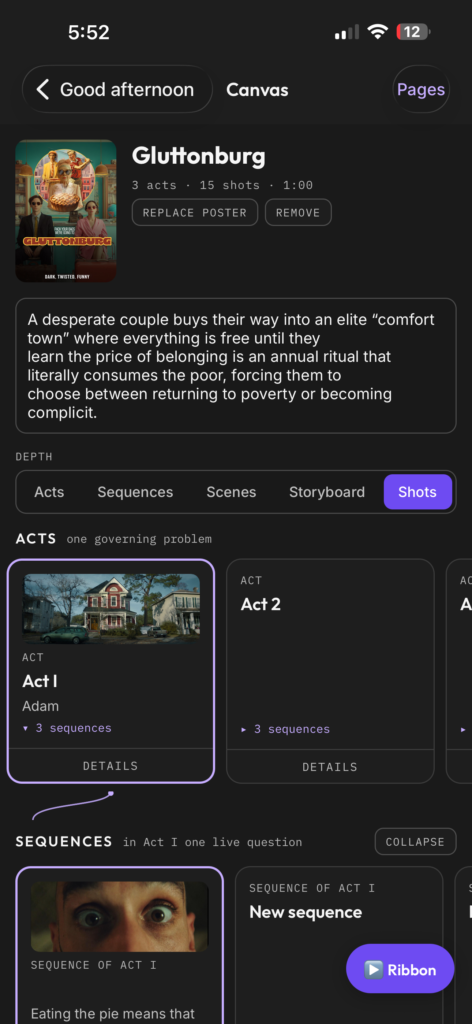
01 · The Canvas
The film as one tree
Everything below a card belongs to that card, and nothing exists without a parent above it. The schedule, the shot list, the storyboard and the call sheet all read from here.
- Four levels. Acts, sequences, scenes and shots, with beats inside scenes.
- Click to open, Details to edit. Add at any level with the + at the end of a band.
- Start from a shape. Feature film, short film, music video or commercial templates.
- Play it through. The shot ribbon steps through every shot in story order, and Present plays it full screen.
Take a look
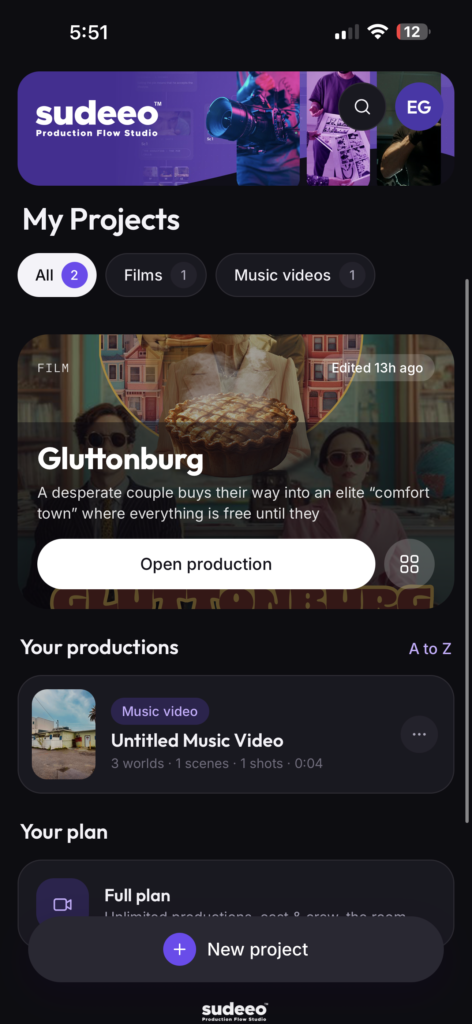
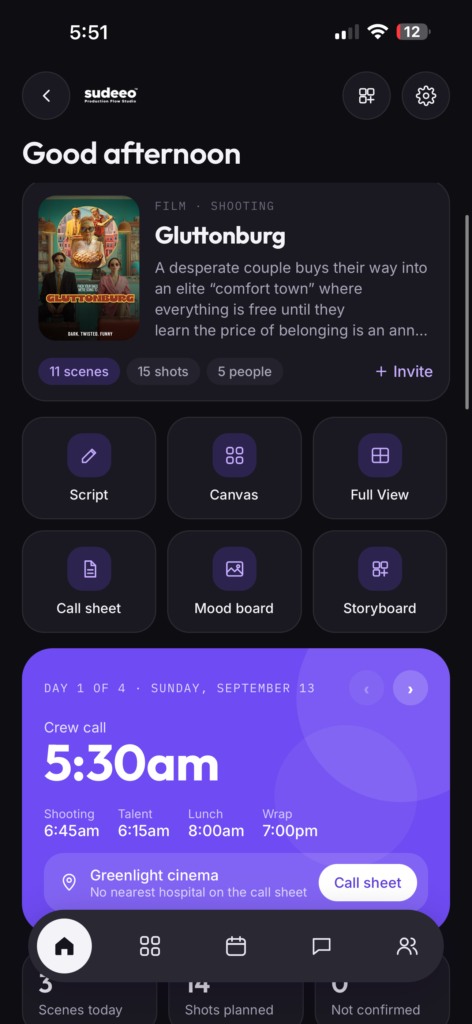
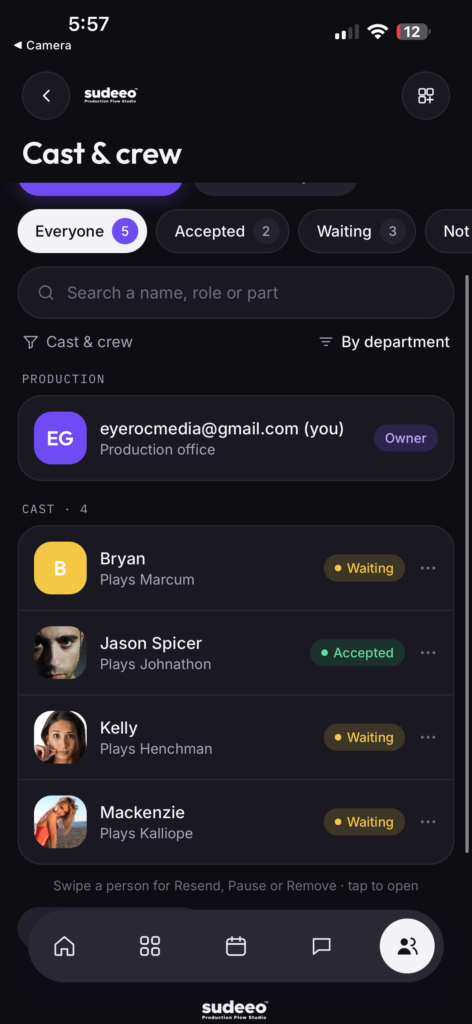
The Mobile Sudeeo, screen by screen
Be there for the beta launch November.11.2026
SCRIPTING
02 · Full View
See the whole film at once
Full View lays every act, sequence, scene and shot out on one surface, so you can read the shape of the film instead of one branch at a time.
Everything on one surface
Acts across the top, their sequences, scenes and shots below, each with its frame. It is the same film as the Canvas, laid flat.
Hover for the brief, click for actions
Rest the pointer on any card to read its brief: an act’s problem, a sequence’s question, a scene’s description. Click it for what you can do with it.
Zoom to scan
Jump between 35%, 50%, 75% and 100%, or step with − and +. Pull back to see the rhythm of the whole film; go in to read it.
Free notes anywhere
Choose + Free note to pin a thought to the surface: a reshoot idea, a question for the writer, a reminder for the edit.
03 · Production View
Today first. Problems next.
The page every production opens on. It answers three questions in order: what is today, what will go wrong if nobody fixes it now, and how ready are we.
- The day, at a glance. The crew call is the largest thing on the page, with shooting, lunch, wrap, the set and the nearest hospital.
- Needs attention. What will go wrong on the day, most urgent first, each with the one button that fixes it.
- Ready for the shoot. Bars for the call sheet times, cast confirmed, scenes scheduled and storyboard frames.
- Who’s in, and the room. The day’s cast and crew, whether they’ve accepted, and the latest from the chat.
Everything connects
One Canvas, every document
These pages don’t hold their own copy of your scenes and shots. They are the same scenes and shots, arranged for the job in hand.
Icon
Schedule
Scene strips on shooting days
Icon
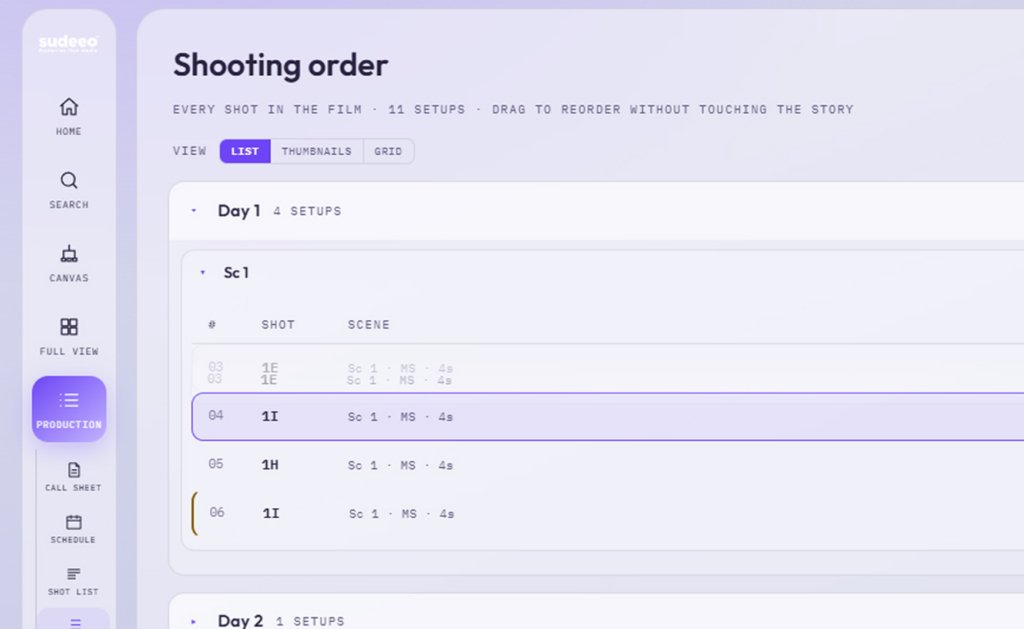
Shooting order
Shots in the order the unit shoots
Icon
Shot list
Every setup, filtered and printed
Icon
Storyboard
Panels and frames by scene
Icon
Call sheet
One per day, with your logo
Icon
Mood board
Characters, locations, palette
Move a scene on the schedule and the call sheet follows. Rename it on the Canvas and every page shows the new name.
04 · Script
Write it here, or bring it in
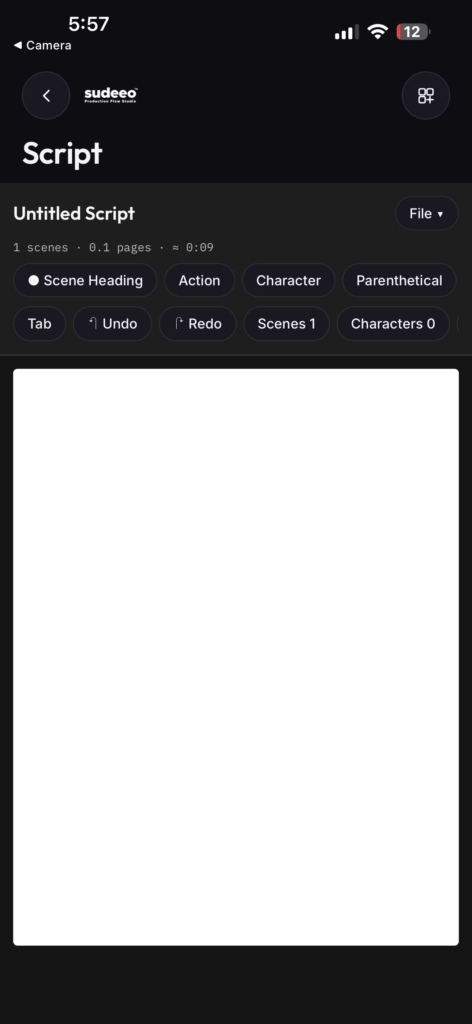
A screenplay editor inside your production, formatted as you type. Or upload a script you already have and let its scene headings build the production for you.
.fdx · .fountain · .txt
Open or upload in the editor
7
Screenplay elements, one key each
Start a script
Choose Script in the sidebar for New script, Open… or Upload .fdx, .fountain or .txt. Scenes list on the left and characters on the right as you write. Export PDF when it’s ready to send.
Turn a script into a production
On My Projects, choose Import a script and upload a .fdx or .txt screenplay. Every scene heading becomes a scene on the Canvas, grouped into acts and sequences. Up to 10 imports a day.
Does writing change my Canvas?
No. The script editor is deliberately separate: writing a scene here doesn’t create or change anything on the Canvas. Import is the way to build a production from a script.
Enter
Next element
A character cue goes to dialogue, dialogue to the next cue.
Tab
Cycle or complete
Change the current element, or take a character suggestion.
INT.
Scene headings on their own
Type INT. or EXT. and the line becomes a scene heading.
Alt 1–7
Any element directly
Scene heading, action, character, parenthetical, dialogue, transition, shot.
05 · Production team
Your company, invited in
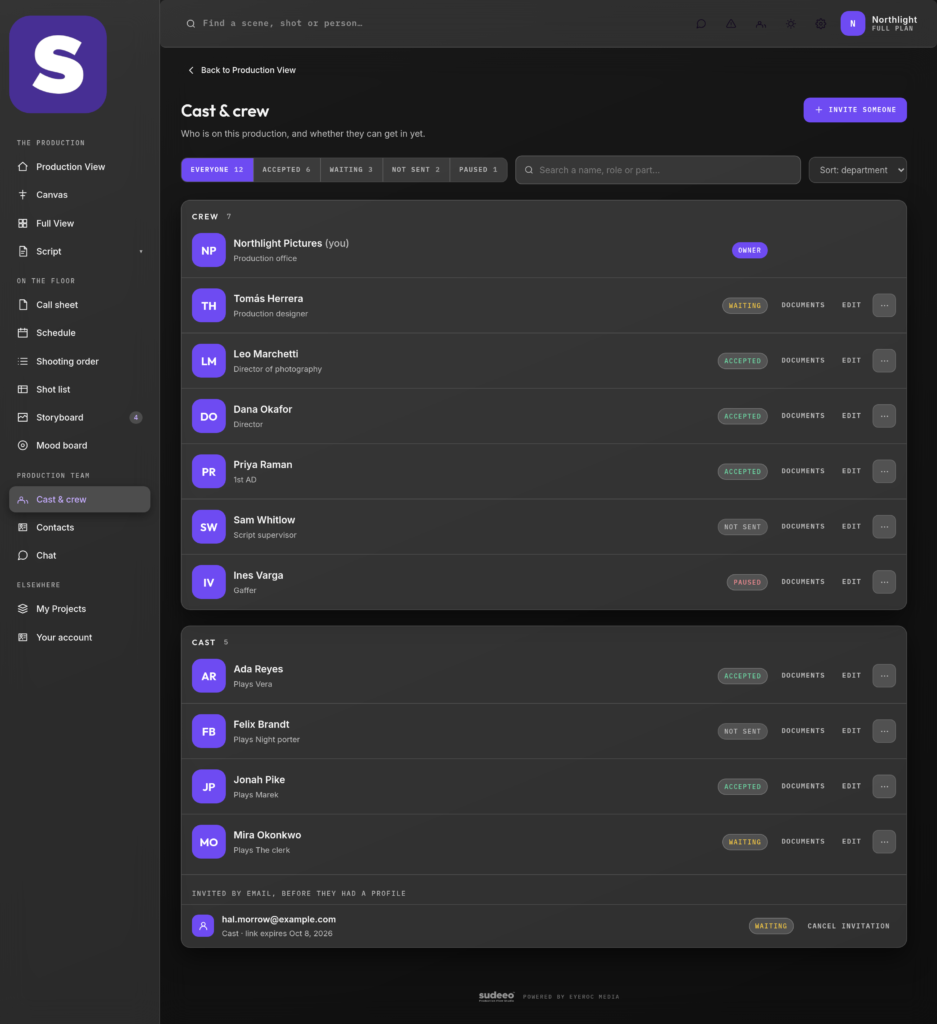
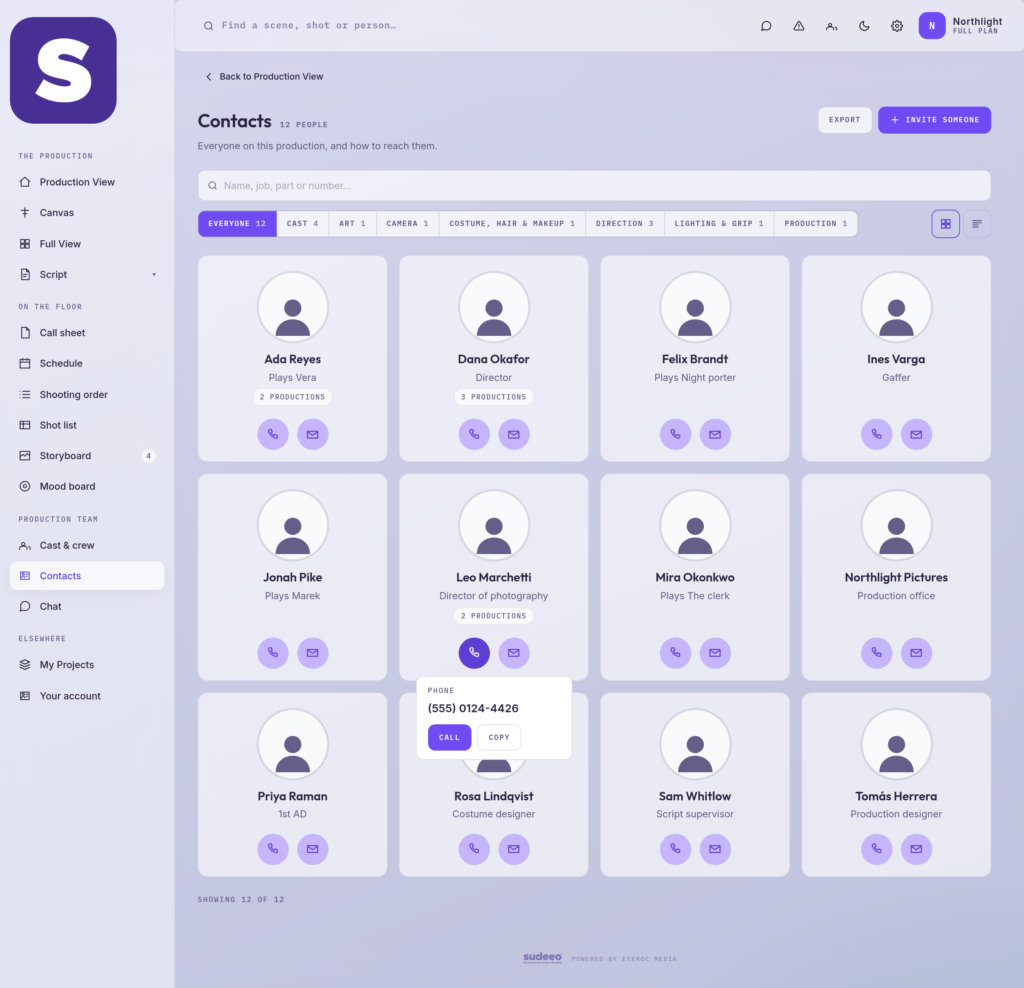
Invite people by email and each one gets a private link to the production, cut down to their job. Everyone’s number is in Contacts, and the whole company talks in one chat room.
Owner
Accepted
Waiting
Not sent
Paused
Invite your cast and crew
Choose Invite someone, pick Cast or Crew, and add their name, email and phone. For crew, their job decides what they see. For cast, add the part they play. They open the email and land on Today: their production’s day on one screen. Being invited costs them nothing.
Know where everyone is
- Accepted: they’ve opened their link and are in.
- Waiting: invited, not in yet. Resend in one click, or resend every waiting invitation at once.
- Not sent: saved, no invitation yet.
- Paused: their access is off; they stay on the call sheet. Removing someone asks first, and you have about 8 seconds to undo it.
Contacts, one tap away
Everyone on the production, A to Z, with a call and email button on each. Search by name, job, part or number, filter by department, and see who you’ve worked with on your other productions.
One chat room for the production
Call times, gate codes, who’s bringing the second camera: it all goes in the production’s one room, with everyone from the office to the cast in it. Open it from the sidebar, the top bar with its unread count, or The room on the Production View.
Plans
Start free. Grow into it.
A free account is a full production from a template. The full plan opens everything else.
Free
$0 always
Plan one production and see how sudeeo works.
- One production, started from a template
- Canvas, Full View and Production View
- Schedule, shot list, storyboard and call sheet
- Script editor, and up to 10 script imports a day
- Join any production you’re invited to
- Inviting cast and crew
- The production chat room
For productions
Full plan
[Price] per month
For productions that are going to shoot.
- As many productions as you need
- Start from scratch, or from a template
- Import a film reference, up to 15 a day
- Invite cast and crew, each to their own view
- The production chat room
- Delivery presentations with private links
Questions
Good to know
Can I try it without an account?
Yes. Look around a sample film: every page is live, with shooting days, a call sheet, shots and storyboards already in place. Editing needs an account.
What’s the difference between the Canvas and Full View?
The Canvas is where you build: you open one branch at a time and edit it. Full View shows the whole film at once, for reading its shape and leaving notes.
Do my cast and crew need to pay?
No. Being invited to a production is free. Inviting people is part of the full plan for the person running the production.
How do the other pages stay in step?
They read from the Canvas instead of keeping copies. The schedule places Canvas scenes on days, the call sheet reads the schedule, and the shot list, shooting order and storyboard show the Canvas’s shots arranged for the floor.
What if I delete something by mistake?
Most removals show an Undo for about 8 seconds before anything is removed. Anything removed from the Canvas can be restored from Deleted items for 30 days. You can also save the whole production as a backup file.
Can I print call sheets with my own logo?
Yes. Set a Brand logo in Settings and it prints on your call sheets and shot lists. Preview the call sheet, then Export PDF.
Who can see my production?
Only you and the people you invite, and each invited person sees only the parts their job needs. You can pause anyone’s access at any time.
Does it work for music videos and commercials?
Yes. A music video uses worlds instead of acts, with scenes tied to the track. A commercial uses beats (hook, problem, solution, proof, call to action) and the shots under them.
Keep going
Go further
Icon
[Link placeholder] Every page in detail, step by step
Icon
Open The Weighing and click around
Icon
[Link placeholder] Questions, and requests for the full plan
Ready to roll?
Start a production from a template in a minute, or look around the sample film first.
How the four levels work
Everything below a card belongs to that card. Nothing can exist without a parent above it.
Act
One governing problem
A phase of the story. It ends when that problem is replaced by a different one, not when tension peaks.
Sequence
One live question
A run of scenes bound by a question no single scene settles. Where pacing and momentum are felt.
Scene
One block of time and space
Something changes; someone leaves in a different state than they arrived. It carries its slug line, location and cast.
Shot
One camera record
A frame with a subject and an intent: code, size, lens, movement and duration.
Beats sit inside scenes: the moment the dynamic shifts. A music video uses worlds instead of acts; a commercial uses beats and shots.
What the Production View checks for
Needs attention looks at the day you’re viewing and the next three shooting days. Each item takes you to the page that fixes it.
| Priority | What it catches | Fix |
|---|---|---|
| ● Urgent | No crew call on the day | Set it on the call sheet |
| ● Urgent | A shooting day with no nearest hospital | Add it on the call sheet |
| ● Urgent | Cast in the day’s scenes who haven’t accepted, or haven’t been invited | Resend or invite on Cast & crew |
| ● Soon | A part in the day’s scenes that nobody plays | Invite on Cast & crew |
| ● Soon | A shooting day with no location | Add it on the call sheet |
| ● Soon | A scene with storyboard panels but no frames | Open the storyboard |
| ● Soon | Scenes with no location | Open the Canvas |
Who sees what
Everyone invited lands on Today. What else they see depends on who they are.
| Who | What they see |
|---|---|
| Everyone | Today, Call sheet, Chat, People, Schedule, and their own profile |
| Cast | Also their Sides, Wardrobe and Character pages, visible only to the assigned actor |
| Crew | Also what their job needs. A location manager sees the shooting order and mood board; an editor the storyboard and shooting order; a colorist the storyboard and mood board. |
| Production office | Every panel, plus Cast & wardrobe, where the cast-facing pages are written |